If you’re using multiple domains on Google Workspace, you already know how reliable it is, but it can also get expensive when you’re paying for Google Workspace mailboxes and also paying separately for your cPanel VPS hosting.
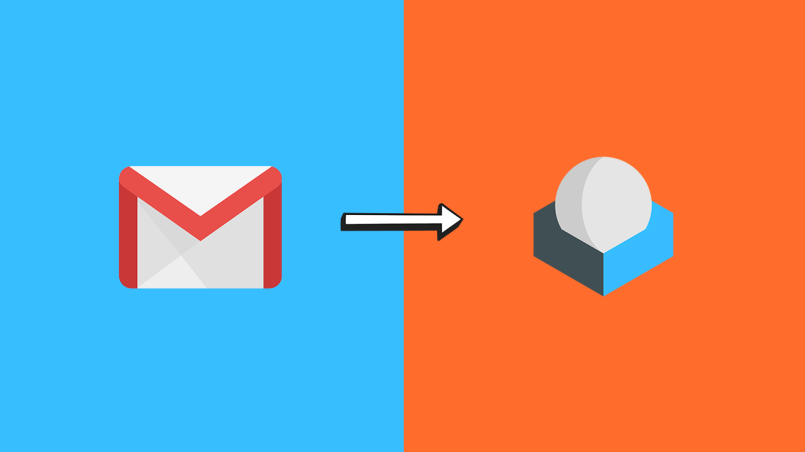
The good thing is: you can migrate your existing emails (Inbox, Sent, Drafts, custom folders) from Google Workspace to your cPanel email accounts, and then use your cPanel mail server + Roundcube as your primary email system going forward.
In this guide, I’ll show you the exact steps to migrate emails from Google Workspace → cPanel mailboxes using IMAPSync, which is one of the most reliable tools for email-to-email migration.
What is IMAPSync
IMAPSync (imapsync) is a mailbox migration tool that copies emails from one email account to another using the IMAP protocol. It connects to your source mailbox (for example, Google Workspace/Gmail) and your destination mailbox (for example, your cPanel email account) and transfers your emails along with your folder structure, including Inbox, Sent, and any custom folders. You can also run it again later to sync only the missing emails, which is helpful for confirming that everything has been copied successfully before you switch MX records and stop using Google Workspace.
Note: Roundcube is not an email server. It’s a webmail interface. Your email server will be your cPanel mail stack (Exim + Dovecot), and Roundcube will simply access the mailbox.
Benefits of Migrating Google Workspace Emails to cPanel
One of the biggest benefits is cost-saving. Instead of paying monthly per user for Google Workspace, you can host your mailboxes on your own cPanel server where you already manage domains and websites.
Another major advantage is full control. You control your mailbox quotas, mail routing, spam rules, and server-side configuration without being dependent on Google’s policies or pricing changes.
Also, migration via IMAPSync is very clean because it copies emails in the same mailbox structure, which means folders like Inbox, Sent, and your custom folders remain available in cPanel webmail after migration.
Finally, once everything is migrated, you can switch your domain MX records to your cPanel mail server and delete the Google Workspace mailboxes if you want to make cPanel as your permanent email solution.
Requirements Before You Start
To migrate Google Workspace emails to cPanel, you need:
1) WHM/cPanel Server with Working Email
-
A WHM/cPanel server
-
Email services running properly (Exim/Dovecot)
-
Working webmail (Roundcube or Horde)
-
Enough disk space/quota for your mailboxes
2) Root SSH Access
You will run IMAPSync from the server, so root SSH access is required (which you already have).
>>How to Enable Root Access & Password Authentication
3) Google Workspace IMAP + App Password
For the smoothest migration, I recommend using Google App Password (instead of OAuth).
To use App Password:
-
The Google account must have 2-Step Verification enabled
-
Then you generate an App Password for mail
Step 1: Create the Same Email Accounts in cPanel
Before migration, create the same mailbox addresses in cPanel.
Example:
- Google:
user@domain.com - cPanel: create
user@domain.comas well
Go to: cPanel → Email Accounts → Create

Make sure:
- The mailbox exists
- Quota is enough (keep some buffer)
Step 2: Generate Google App Password (Recommended)
For each Google Workspace mailbox:
- Login to that mailbox account
- Open Google Account → Security
- Enable 2-Step Verification (if not already enabled)

- Open App passwords
- Create an app password for:
- App: Mail
- Device: Other (cPanel)
- Save the 16-digit app password (without spaces)

You will use this password in the migration command.
Step 3: Install IMAPSync on AlmaLinux (Works on AlmaLinux 8 and 9)
Now login to your WHM server via root SSH and run:
dnf -y install epel-release
dnf -y install imapsync
Verify installation:
imapsync --version

If you see a version output, IMAPSync is ready.
Step 4: Create a Logs Folder (Optional but Recommended)
This helps you keep logs for each mailbox migration.
mkdir -p /root/imapsync-logs
Step 5: Migrate One Google Workspace Mailbox to cPanel
Now use IMAPSync to migrate one mailbox.
Replace these values:
-
user@domain.com -
GOOGLE_APP_PASSWORD -
CPANEL_EMAIL_PASSWORD -
mail.domain.com(your mail hostname)
Here is the command:
imapsync \
--host1 imap.gmail.com --user1 user@domain.com --password1 'GOOGLE_APP_PASSWORD' --ssl1 \
--host2 mail.domain.com --user2 user@domain.com --password2 'CPANEL_EMAIL_PASSWORD' --ssl2 \
--automap --addheader \
--exclude "\[Gmail\]/All Mail" \
--logfile "/root/imapsync-logs/user@domain.com.log"
Why to exclude “All Mail”
Gmail has a folder called All Mail which can create duplicate copy behavior during IMAP migrations. Excluding it keeps migration clean in most cases.
Step 6: Verify the Migration in Roundcube
Once the command completes:
-
Login to webmail:
-
https://webmail.domain.com/roundcube(or :2096)
-
-
Open Inbox, Sent, and other folders
-
Search and open random older emails
-
Confirm attachments open properly
If everything looks good, you can migrate the rest of your mailboxes.

Step 7: Migrate Multiple Mailboxes (Batch Method)
If you have many email accounts across multiple domains, do it in batch.
7.1 Create an accounts list file
nano /root/imapsync-accounts.txt
Add lines in this format:
user1@domain1.com|GOOGLE_APP_PASS1|CPANEL_PASS1|mail.domain1.com
user2@domain2.com|GOOGLE_APP_PASS2|CPANEL_PASS2|mail.domain2.com
Save and exit.
7.2 Run the batch migration
while IFS='|' read -r u gp cp host; do
echo "===== Syncing $u ====="
imapsync \
--host1 imap.gmail.com --user1 "$u" --password1 "$gp" --ssl1 \
--host2 "$host" --user2 "$u" --password2 "$cp" --ssl2 \
--automap --addheader \
--exclude "\[Gmail\]/All Mail" \
--logfile "/root/imapsync-logs/$u.log"
done < /root/imapsync-accounts.txt
Now each mailbox will have its own log file:
ls -lh /root/imapsync-logs
Step 8: Switch MX Records to cPanel (Final Cutover)
Once you confirm all emails are migrated properly, update your domain DNS:
-
Remove Google Workspace MX records
-
Add your cPanel mail server MX
Example:
-
MX 10 mail.domain.com

Also make sure you already have:
-
SPF updated
-
DKIM enabled in cPanel (Email Deliverability)
-
DMARC aligned
After MX change, your cPanel mailboxes will start receiving new emails.
Step 9: Delete Google Workspace Mailboxes
Once you are fully satisfied (and you have tested send/receive for a day or two), you can delete the Google Workspace accounts and stop paying for Workspace.
This completes the migration, and from now on your email will be fully managed by your cPanel server + Roundcube.
Conclusion
IMAPSync is a reliable way to migrate your existing Google Workspace emails to cPanel while keeping your mailbox structure and folders intact. During migration, Gmail labels may appear as folders in cPanel, this is normal. Keep in mind that Contacts and Calendar are separate, so if you need them, you’ll have to export/import them separately. And if you want extra safety, you can run IMAPSync again after a few hours or days, it will re-sync and copy only missing items, which is helpful for staged migrations or final verification before deleting your Google Workspace account.